
Tag Archives: port
TimesTen and OBIEE port conflicts on Exalytics
Introduction
Whilst helping a customer set up their Exalytics server the other day I hit an interesting problem. Not interesting as in hey-this-will-cure-cancer, or oooh-big-data-buzzword interesting, or even interesting as in someone-has-had-a-baby, but nonetheless, interesting if you like learning about the internals of the Exalytics stack.
The installation we were doing was multiple non-production environments on bare metal, a design that we developed on our own Rittman Mead Exalytics box early on last year, and one that Oracle describe in their Exalytics white paper which was published recently. Part of a multiple environment install is careful planning of the port allocations. OBIEE binds to many ports per instance, and there is also TimesTen to consider. I’d been through this meticuluously, specifying ports through the staticports.ini file when building the OBIEE domain, as well as in the bim-setup.properties for TimesTen.
So, having given such careful thought to ports, imagine my surprise at seeing this error when we started up one of the OBIEE instances:
[OracleBIServerComponent] [ERROR:1] [] [] [ecid: ] [tid: e1dbd700]  [nQSError: 12002]
Socket communication error at call=bind: (Number=98) Address already in use
which caused a corresponding OPMN error:
ias-component/process-type/process-set:
  coreapplication_obis1/OracleBIServerComponent/coreapplication_obis1/
Error
--> Process (index=1,uid=328348864,pid=17875)
  time out while waiting for a managed process to start
Address already in use? But…all my ports were hand-picked so that they explicitly woulnd’t clash …
Dynamic ports
So it turns out that TimesTen, as well as using the two ports that are explicitly configured (deamon and server, usually 53396 and 53397 respectively), the TimesTen server processs also binds to a port chosen at random by the OS each time for the purpose of internal communication. The OS chooses this port based on the configured dynamic port range, and of that range, which ports are available. This is similar to what the Oracle Database listener does, and as my colleague Pete Scott pointed out it’s been known for port clashes to occur between ODI and the Oracle Database listener. What TimesTen is doing is nothing specific to TimesTen as such, and it is conforming to standard good practice in its use of the OS API calls for port allocations.
To see this in action, use the netstat command, with the flags tlnp:
t: tcp onlyl: LISTEN status onlyn: numeric addresses/ports onlyp: show associated processes
We pipe the output of the netstat command to grep to filter for just the process we’re looking for, giving us:
[oracle@obieesample info]$ netstat -tlnp|grep ttcserver
(Not all processes could be identified, non-owned process info
 will not be shown, you would have to be root to see it all.)
tcp        0      0 127.0.0.1:58476             0.0.0.0:*                   LISTEN      4811/ttcserver
tcp        0      0 0.0.0.0:53397               0.0.0.0:*                   LISTEN      4811/ttcserver
Here we can see on the last line the TimesTen server process (ttcserver) listening on the explicitly configured port 53397 for traffic on any address. We also see it listening on port 58476 for traffic only on the local loopback address 127.0.0.1.
What happens if we restart the TimesTen server and look at the ports again?
[oracle@obieesample info]$ ttdaemonadmin -restartserver
TimesTen Server stopped.
TimesTen Server started.
[oracle@obieesample info]$ netstat -tlnp|grep ttcserver
(Not all processes could be identified, non-owned process info
 will not be shown, you would have to be root to see it all.)
tcp        0      0 127.0.0.1:17073             0.0.0.0:*                   LISTEN      6878/ttcserver
tcp        0      0 0.0.0.0:53397               0.0.0.0:*                   LISTEN      6878/ttcserver
We can see the same listen port 53397 as before, listening for any client connections either locally or remotely, but now the port bound to the local loopback address 127.0.0.1 has changed - 17073.
Russian Roulette
So each time TimesTen starts it requests a port from the OS which will allocate one from the ports available in the dynamic port range. Unfortunately, this may or may not be one of the ones that OBIEE is configured to use. If OBIEE is started first, then the problem does not arise because OBIEE has already taken the ports it needs, leaving the OS to choose from the remaining unused ports for TimesTen to use.
If there are multiple instances of TimesTen and multiple instances of OBIEE then the chances of a port collision increase. What I wanted to know was how to isolate TimesTen from the ports I’d chosen for OBIEE. Constraining the application startup order (so that OBIEE gets all its ports first, and then TimesTen can use whatever is left) is a lame solution since it artificially couples two components that don’t need to be, adding to the complexity and support overhead.
TimesTen itself cannot be configured in its behaviour with these ports - Doc ID 1295539.1 states:
[...] All other TCP/IP port assignments to TimesTen processes are completely random and based on the availability of ports at the time when the process is spawned.
To understand the port range that TimesTen was using (so that I could then configure OBIEE to avoid it) I knocked up this little script. It restarts the TimesTen server, and then appends to a file the random port that it has bound to:
$ cat ./tt_port_scrape.sh
ttdaemonadmin -restartserver
netstat -tlnp|grep ttcserver|grep 127.0.0.1|awk -F ":" '{print $2}'|cut -d " " -f 1 1>>tt_ports.txt
Using my new favourite linux command, watch, I can run the above repeatedly (by default, every two seconds) until I get bored^H^H^H^H^H^H^H^H^H have collected sufficient data points
watch ./tt_port_scrape.sh
Finally, parse the output from the script to look at the port ranges:
echo "Lowest port: " $(sort -n tt_ports.txt | head -n1)
echo "Highest port: " $(sort -n tt_ports.txt | tail -n1)
echo "Number of tests: " $(wc -l tt_ports.txt )
Using this, I observed that TimesTen server would bind to ports ranging from as low as around 9000, up to 65000 or so.
Solution
Raising this issue with the good folks at Oracle Support yielded a nice easy solution. In the kernel settings, there is a configuration option net.ipv4.ip_local_port_range which specifies the local port range available for use by applications. By default this is 9000 to 65500, which matches the range that I observed in my testing above:
[root@rnm-exa-01 ~]# sysctl net.ipv4.ip_local_port_range
net.ipv4.ip_local_port_range = 9000     65500
I changed this range with sysctl -w :
[root@rnm-exa-01 ~]# sysctl -w net.ipv4.ip_local_port_range="11000 65000"
[root@rnm-exa-01 ~]# sysctl net.ipv4.ip_local_port_range
net.ipv4.ip_local_port_range = 11000    65000
and then reran my testing above, which sure enough showed that TimesTen was now keeping its hands to itself and away from my configured OBIEE port ranges:
Lowest port:  11002
Highest port:  64990
If I ran the test for longer, I’m sure I’d hit the literal extremes of the range. One important point here is that the range should not be set too small, because really nasty things will happen if the OS runs out of dynamic ports, and these ports are used in many places in the OS and applications running on it, not just the obvious TimesTen and associated Exalytics applications.
To make the changes permanent, I added the entry to /etc/sysctl.conf:
net.ipv4.ip_local_port_range = 11000 65535
The final point to note here is that if you are installing multiple TimesTen environments on the same Exalytics server then you may actually find one TimesTen instance conflicting with another, if the first instance to start gets allocated a port by the OS which happens to be one of the two static ones that another TimesTen instance on the server is configured to use. Thus, if you are planning on mapping your OBIEE ports outside of the (possible reconfigured) net.ipv4.ip_local_port_range you may be advised to do the same for the static TimesTen ports too.
Lessons learned
- Diagnosing application interactions and dependencies is fun ;-)
watchis a really useful little command on linux- When choosing OBIEE port ranges in multi-environment Exalytics installations, bear in mind that you want to partition off a port range for TimesTen, so keep the port ranges allocated to OBIEE ‘lean’.
Configuring OBI 11g to use port 80
Introduction
By default, OBI 11g will listen for connections on port 7001 or port 9704 depending on your installation type. There are several reasons you may want to change this, and one of them would be to make it use port 80, the default http port. If you use port 80, then you don’t have to specify it in the URL, so you can use http://biserver/analytics/ as your URL instead of http://biserver:9704/analytics/.
The port configuration is a simple change to be made to the Server configuration in Web Logic Console. However, if you want to use port 80 and are running Linux/Unix there is an additional consideration. On Linux/Unix (hereafter, I’ll just refer to Linux), any port < 1024 is considered privileged and you must run the program binding to it as root.
At this point, if you don't have root access on your box already and are beholden to a sysadmin team, I would suggest validating your reasons for wanting to run on port 80, since you are going to have to go begging for some kind of privileged access. If you're up for that, then read on. If not, then why not stick with 9704, it's a nice number anyway....
Overview of the change to listen on port 80
The configuration changes are actually very simple. They are just within Web Logic Server, we don’t touch the BI components at all.
We change the Listen Port property of the Server to port 80.
Since we are using port 80, we will have to start the server process as root. But, we can get Web Logic to revert back to the OBI user&group once the port has been bound to (since running a process as root is generally a Bad Idea)
To do this, we configure Post-Bind UID in the Machine properties.
WLS - Server configuration
Depending on whether you have a Enterprise or Simple OBI installation, the configuration will differ slightly. See Mark’s post here for explanation of the difference between the two installation types. In an Enterprise installation, you need to modify the properties of the bi_server1 Managed Server, whereas a Simple installation has all the bits within AdminServer.
For both however, you need to login to Web Logic Admin Console, and locate the Servers screen. Click on either AdminServer (Simple installation) or bi_server1 (Enterprise installation) to view the Server settings.
Click on Lock & Edit
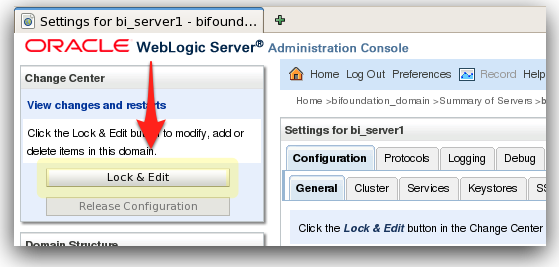
Locate Listen Port on the Server configuration (Configuration -> General, if not already displayed). Change this to 80.
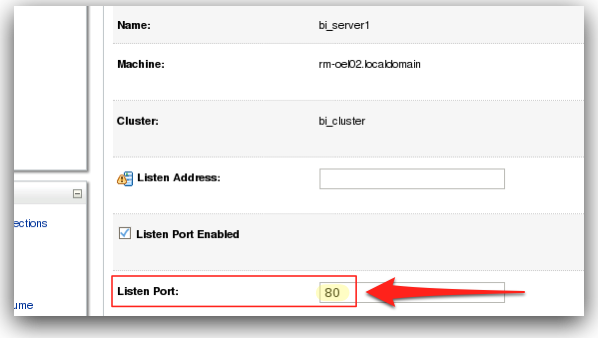
Click on Save.
WLS - Machine configuration
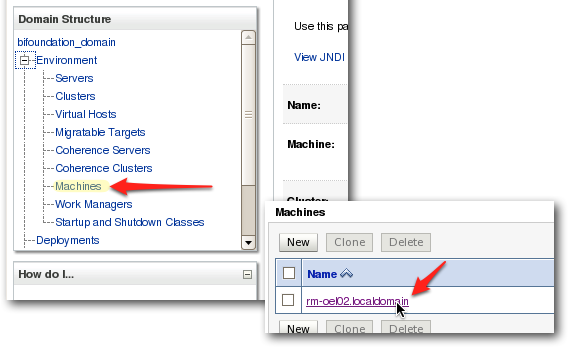
Still logged into Web Logic Admin Console, with the above Listen Port change pending, click on the Machines link under Environment in the Domain Structure menu. Click on your server name.
Now, tick the two items Enable Post-Bind UID and Enable Post-Bind GID.
To determine your userid and group, login with your normal OBI user, and type id
$ id
uid=300(oracle) gid=301(oinstall)
Enter these values in Post-Bind UID and Post-Bind GID
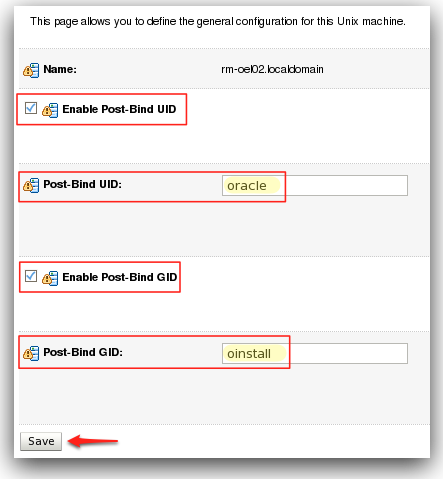
Click on Save.
Activate the changes
In Web Logic Admin Console, click on Activate Changes.
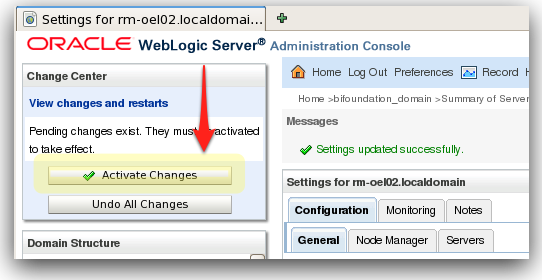
When this has completed successfully, shutdown the stack and then see below for how to start it back up.
Starting up the stack to listen on port 80
You don’t need to run all of the components with root privilege, only those that are binding to port 80. In addition, in an Enterprise installation you have the Node Manager component which is responsible for invoking Managed Servers, and since we need the Managed Server bi_server1 to be run with root privileges, Node Manager must be too.
‘Simple’ installation
- Start WebLogic, as root
- Start OPMN and BI Components (not as root)
‘Enterprise’ installation
- Start NodeManager, as root
- If you don’t start this as root, you won’t be able to start up the Managed Server bi_server1 from within Web Logic Admin Console
- Start WebLogic (AdminServer) (not as root)
- Start WebLogic Managed Server (bi_server1), as root
- Start OPMN and BI Components (not as root)
Validate the changes
You should now be able to access OBI at port 80, which as the default HTTP port doesn’t need specifying in your URL. So if previously it was http://localhost:9704/analytics/ you should now be able to see it at http://localhost/analytics
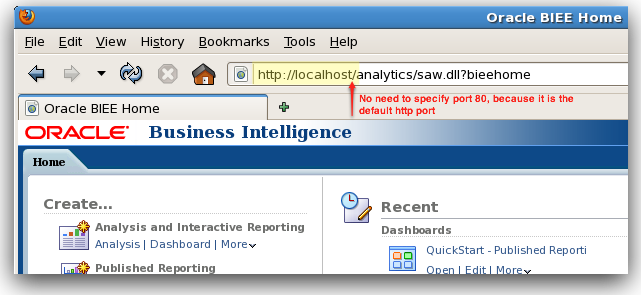
If you look in the Web Logic server log (AdminServer.log / bi_server1.log respectively), you should see this kind of entry:
<Notice> <Server> <BEA-002613> <Channel "Default[1]" is now listening on 192.168.69.0:80 for protocols iiop, t3, ldap, snmp, http.>
<Notice> <Server> <BEA-002613> <Channel "Default[2]" is now listening on 127.0.0.1:80 for protocols iiop, t3, ldap, snmp, http.>
And netstat should show something like:
$ netstat -a|grep LISTEN|grep 80
[…]
biserver01.80             *.*                0      0 49152      0 LISTEN
localhost.80               *.*                0      0 49152      0 LISTEN
[…]
or you might see the port named instead of numbered, thus:
$ netstat -a|grep LISTEN|grep http
tcp        0      0 rm-oel02.localdomain:http   *:*                         LISTEN
tcp        0      0 localhost.localdomain:http  *:*                         LISTEN
Possible errors
If you don’t start the process as root, then it will fail to bind to port 80, and you’ll see this error in the log:
<Error> <Server> <BEA-002606> <Unable to create a server socket for listening on channel "Default[1]". The address 127.0.0.1 might be incorrect or another process is using port 80: java.net.BindException: Permission denied.>
sudo
What is sudo? Well, any chance to quote this xkcd cartoon is a good one:

What sudo does is let you run a command under root (superuser) privileges, without actually being root. This is very useful in two ways: (1) your sysadmins don’t have kittens when you ask for root access, because they can give it in a very granular way which is logged every time it is used (2) you’re not let loose on a server with unfettered root access where a simple slip of the keyboard can serious knacker things up (hence your sysadmin’s kittens).
sudo can be granted globally for a user, that is, any command the user wants to run as root can be done so. Alternatively, sudo can be allowed for one or many pre-specified commands. This means that in this case your sysadmins can give you the right to run the required WLS processes as root, and absolutely nothing else.
This is an example of such an entry in the sudo configuration file, /etc/sudoers :
Cmnd_Alias BISERVER = /app/fmw11115/user_projects/domains/bifoundation_domain/bin/startManagedWebLogic.sh bi_server1, /app/fmw11115/wlserver_10.3/server/bin/startNodeManager.sh
# This defines a command alias, BISERVER, with the web logic startup script and arguments to call, and the command to start Node Manager
oracle     localhost=NOPASSWD BISERVER
# user oracle, on machine localhost, can run BISERVER command alias, without being re-prompted for their password
Whenever you invoke sudo, it’ll be logged in /var/log/secure, eg:
Jan 3 17:07:19 rm-oel02 sudo: rnm : TTY=pts/2 ; PWD=/home/rnm ; USER=root ; COMMAND=/app/fmw11115/user_projects/domains/bifoundation_domain/bin/startManagedWebLogic.sh bi_server1
Alternative to running root/sudo
An interesting alternative is to leave OBI listening on its default port, and configure the server to forward requests on port 80 to it, for example using iptables. I found this suggestion here, amongst other places. This way you’d only need a one-time privileged change made on the server, instead of needing privileged rights continually (however limited they may be)
I’ve not had chance to try it, and in keeping to the KISS principle would probably only consider it if all other options were exhausted. Thinking of someone coming to the server after me, would their first thought around OBI port configuration really be to look at iptables? Whereas Listen Port is a standard configuration item within WLS.
 Specialist in liberating data into valuable information for the business.
  The technical engineers who know all about Oracle BI architectures
  The implementation partner for Exadata and Exalytics