
Tag Archives: Oracle GoldenGate
Oracle GoldenGate, MySQL and Flume
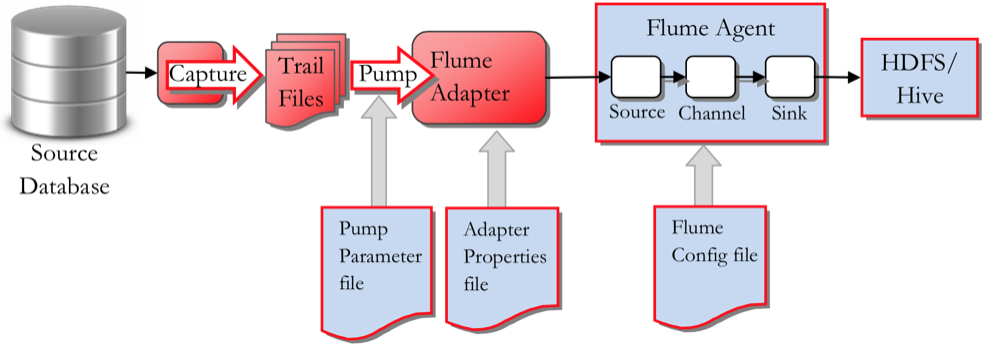
Back in September Mark blogged about Oracle GoldenGate (OGG) and HDFS . In this short followup post I’m going to look at configuring the OGG Big Data Adapter for Flume, to trickle feed blog posts and comments from our site to HDFS. If you haven’t done so already, I strongly recommend you read through Mark’s previous post, as it explains in detail how the OGG BD Adapter works. Just like Hive and HDFS, Flume isn’t a fully-supported target so we will use Oracle GoldenGate for Java Adapter user exits to achieve what we want.
What we need to do now is
- Configure our MySQL database to be fit for duty for GoldenGate.
- Install and configure Oracle GoldenGate for MySQL on our DB server
- Create a new OGG Extract and Trail files for the database tables we want to feed to Flume
- Configure a Flume Agent on our Cloudera cluster to ‘sink’ to HDFS
- Create and configure the OGG Java adapter for Flume
- Create External Tables in Hive to expose the HDFS files to SQL access
Setting up the MySQL Database Source Capture
The MySQL database I will use for this example contains blog posts, comments etc from our website. We now want to use Oracle GoldenGate to capture new blog post and our readers’ comments and feed this information in to the Hadoop cluster we have running in the Rittman Mead Labs, along with other feeds, such as Twitter and activity logs.
The database has to be configured to user binary logging and also we need to ensure that the socket file can be found in /tmp/mysql.socket. You can find the details for this in the documentation. Also we need to make sure that the tables we want to extract from are using the InnoDB engine and not the default MyISAM one. The engine can easily be changed by issuing
alter table wp_mysql.wp_posts engine=InnoDB;
Assuming we already have installed OGG for MySQL on /opt/oracle/OGG/ we can now go ahead and configure the Manager process and the Extract for our tables. The tables we are interested in are
wp_mysql.wp_posts
wp_mysql.wp_comments
wp_mysql.wp_users
wp_mysql.wp_terms
wp_mysql.wp_term_taxonomy
First configure the manager
-bash-4.1$ cat dirprm/mgr.prm
PORT 7809
PURGEOLDEXTRACTS /opt/oracle/OGG/dirdat/*, USECHECKPOINTS
Now configure the Extract to capture changes made to the tables we are interested in
-bash-4.1$ cat dirprm/mysql.prm
EXTRACT mysql
SOURCEDB wp_mysql, USERID root, PASSWORD password
discardfile /opt/oracle/OGG/dirrpt/FLUME.dsc, purge
EXTTRAIL /opt/oracle/OGG/dirdat/et
GETUPDATEBEFORES
TRANLOGOPTIONS ALTLOGDEST /var/lib/mysql/localhost-bin.index
TABLE wp_mysql.wp_comments;
TABLE wp_mysql.wp_posts;
TABLE wp_mysql.wp_users;
TABLE wp_mysql.wp_terms;
TABLE wp_mysql.wp_term_taxonomy;
We should now be able to create the extract and start the process, as with a normal extract.
ggsci>add extract mysql, tranlog, begin now
ggsci>add exttrail ./dirdat/et, extract mysql
ggsci>start extract mysql
ggsci>info mysql
ggsci>view report mysql
We will also have to generate metadata to describe the table structures in the MySQL database. This file will be used by the Flume adapter to map columns and data types to the Avro format.
-bash-4.1$ cat dirprm/defgen.prm
-- To generate trail source-definitions for GG v11.2 Adapters, use GG 11.2 defgen,
-- or use GG 12.1.x defgen with "format 11.2" definition format.
-- If using GG 12.1.x as a source for GG 11.2 adapters, also generate format 11.2 trails.
-- UserId logger, Password password
SOURCEDB wp_mysql, USERID root, PASSWORD password
DefsFile dirdef/wp.def
TABLE wp_mysql.wp_comments;
TABLE wp_mysql.wp_posts;
TABLE wp_mysql.wp_users;
TABLE wp_mysql.wp_terms;
TABLE wp_mysql.wp_term_taxonomy;
-bash-4.1$ ./defgen PARAMFILE dirprm/defgen.prm
***********************************************************************
        Oracle GoldenGate Table Definition Generator for MySQL
      Version 12.1.2.1.0 OGGCORE_12.1.2.1.0_PLATFORMS_140920.0203
...
***********************************************************************
**            Running with the following parameters                  **
***********************************************************************
SOURCEDB wp_mysql, USERID root, PASSWORD ******
DefsFile dirdef/wp.def
TABLE wp_mysql.wp_comments;
Retrieving definition for wp_mysql.wp_comments.
TABLE wp_mysql.wp_posts;
Retrieving definition for wp_mysql.wp_posts.
TABLE wp_mysql.wp_users;
Retrieving definition for wp_mysql.wp_users.
TABLE wp_mysql.wp_terms;
Retrieving definition for wp_mysql.wp_terms.
TABLE wp_mysql.wp_term_taxonomy;
Retrieving definition for wp_mysql.wp_term_taxonomy.
Definitions generated for 5 tables in dirdef/wp.def.
Setting up the OGG Java Adapter for Flume
The OGG Java Adapter for Flume will use the EXTTRAIL created earlier as a source, pack the data up and feed to the cluster Flume Agent, using Avro and RPC. The Flume Adapter thus needs to know
- Where is the OGG EXTTRAIL to read from
- How to treat the incoming data and operations (e.g. Insert, Update, Delete)
- Where to send the Avro messages to
First we create a parameter file for the Flume Adapter
-bash-4.1$ cat dirprm/flume.prm
EXTRACT flume
SETENV ( GGS_USEREXIT_CONF = "dirprm/flume.props")
CUSEREXIT libggjava_ue.so CUSEREXIT PASSTHRU INCLUDEUPDATEBEFORES
GETUPDATEBEFORES
NOCOMPRESSUPDATES
SOURCEDEFS ./dirdef/wp.def
DISCARDFILE ./dirrpt/flume.dsc, purge
TABLE wp_mysql.wp_comments;
TABLE wp_mysql.wp_posts;
TABLE wp_mysql.wp_users;
TABLE wp_mysql.wp_terms;
TABLE wp_mysql.wp_term_taxonomy;
There are two things to note here
- The OGG Java Adapter User Exit is configured in a file called flume.props
- The source tables’ structures are defined in wp.def
The flume.props file is a ‘standard’ User Exit config file
-bash-4.1$ cat dirprm/flume.props
gg.handlerlist=ggflume
gg.handler.ggflume.type=com.goldengate.delivery.handler.flume.FlumeHandler
gg.handler.ggflume.host=bd5node1.rittmandev.com
gg.handler.ggflume.port=4545
gg.handler.ggflume.rpcType=avro
gg.handler.ggflume.delimiter=;
gg.handler.ggflume.mode=tx
gg.handler.ggflume.includeOpType=true
# Indicates if the operation timestamp should be included as part of output in the delimited separated values
# true - Operation timestamp will be included in the output
# false - Operation timestamp will not be included in the output
# Default :- true
gg.handler.ggflume.includeOpTimestamp=true
# Optional properties to use the transaction grouping functionality
#gg.handler.ggflume.maxGroupSize=1000
#gg.handler.ggflume.minGroupSize=1000
### native library config ###
goldengate.userexit.nochkpt=TRUE
goldengate.userexit.timestamp=utc
goldengate.log.logname=cuserexit
goldengate.log.level=INFO
goldengate.log.tofile=true
goldengate.userexit.writers=javawriter
gg.report.time=30sec
gg.classpath=AdapterExamples/big-data/flume/target/flume-lib/*
javawriter.stats.full=TRUE
javawriter.stats.display=TRUE
javawriter.bootoptions=-Xmx32m -Xms32m -Djava.class.path=ggjava/ggjava.jar -Dlog4j.configuration=log4j.properties
Some points of interest here are
- The Flume agent we will send our data to is running on port 4545 on host bd5node1.rittmandev.com
- We want each record to be prefixed with I(nsert), U(pdated) or D(delete)
- We want each record to be postfixed with a timestamp of the transaction date
- The Java class com.goldengate.delivery.handler.flume.FlumeHandler will do the actual work. (The curios reader can view the code in /opt/oracle/OGG/AdapterExamples/big-data/flume/src/main/java/com/goldengate/delivery/handler/flume/FlumeHandler.java)
Before starting up the OGG Flume, let’s first make sure that the Flume agent on bd5node1 is configure to receive our Avro message (Source) and also what to do with the data (Sink)
a1.channels = c1
a1.sources = r1
a1.sinks = k2
a1.channels.c1.type = memory
a1.sources.r1.channels = c1
a1.sources.r1.type = avro
a1.sources.r1.bind = bda5node1
a1.sources.r1.port = 4545
a1.sinks.k2.type = hdfs
a1.sinks.k2.channel = c1
a1.sinks.k2.hdfs.path = /user/flume/gg/%{SCHEMA_NAME}/%{TABLE_NAME}
a1.sinks.k2.hdfs.filePrefix = %{TABLE_NAME}_
a1.sinks.k2.hdfs.writeFormat=Writable
a1.sinks.k2.hdfs.rollInterval=0
a1.sinks.k2.hdfs.hdfs.rollSize=1048576
a1.sinks.k2.hdfs.rollCount=0
a1.sinks.k2.hdfs.batchSize=100
a1.sinks.k2.hdfs.fileType=DataStream
Here we note that
- The agent’s source (inbound data stream) is to run on port 4545 and to use avro
- The agent’s sink will write to HDFS and store the files in /user/flume/gg/%{SCHEMA_NAME}/%{TABLE_NAME}
- The HDFS files will be rolled over every 1Mb (1048576 bytes)
We are now ready to head back to the webserver that runs the MySQL database and start the Flume extract, that will feed all committed MySQL transactions against our selected tables to the Flume Agent on the cluster, which in turn will write the data to HDFS
-bash-4.1$ export LD_LIBRARY_PATH=/usr/lib/jvm/jdk1.7.0_55/jre/lib/amd64/server
-bash-4.1$ export JAVA_HOME=/usr/lib/jvm/jdk1.7.0_55/
-bash-4.1$ ./ggsci
ggsci>add extract flume, exttrailsource ./dirdat/et
ggsci>start flume
ggsci>info flume
EXTRACT    FLUME     Last Started 2015-03-29 17:51   Status RUNNING
Checkpoint Lag       00:00:00 (updated 00:00:06 ago)
Process ID           24331
Log Read Checkpoint  File /opt/oracle/OGG/dirdat/et000008
                     2015-03-29 17:51:45.000000  RBA 7742
If I now submit this blogpost I should see the results showing up our Hadoop cluster in the Rittman Mead Labs.
[oracle@bda5node1 ~]$ hadoop fs -ls /user/flume/gg/wp_mysql/wp_posts
-rw-r--r--   3 flume  flume   3030 2015-03-30 16:40 /user/flume/gg/wp_mysql/wp_posts/wp_posts_.1427729981456
We can quickly create an externally organized table in Hive to view the results with SQL
hive> CREATE EXTERNAL TABLE wp_posts(
     op string,
 ID                     int,
 post_author            int,
 post_date              String,
 post_date_gmt          String,
 post_content           String,
 post_title             String,
 post_excerpt           String,
 post_status            String,
 comment_status         String,
 ping_status            String,
 post_password          String,
 post_name              String,
 to_ping                String,
 pinged                 String,
 post_modified          String,
 post_modified_gmt      String,
 post_content_filtered  String,
 post_parent            int,
 guid                   String,
 menu_order             int,
 post_type              String,
 post_mime_type         String,
 comment_count          int,
     op_timestamp timestamp
  )
 COMMENT 'External table ontop of GG Flume sink, landed in hdfs'
 ROW FORMAT DELIMITED FIELDS TERMINATED BY ';'
 STORED AS TEXTFILE
 LOCATION '/user/flume/gg/wp_mysql/wp_posts/';
hive> select post_title from gg_flume.wp_posts where op='I' and id=22112;
Total jobs = 1
Launching Job 1 out of 1
Number of reduce tasks is set to 0 since there's no reduce operator
Starting Job = job_1427647277272_0017, Tracking URL = http://bda5node1.rittmandev.com:8088/proxy/application_1427647277272_0017/
Kill Command = /opt/cloudera/parcels/CDH-5.3.0-1.cdh5.3.0.p0.30/lib/hadoop/bin/hadoop job  -kill job_1427647277272_0017
Hadoop job information for Stage-1: number of mappers: 2; number of reducers: 0
2015-03-30 16:51:17,715 Stage-1 map = 0%,  reduce = 0%
2015-03-30 16:51:32,363 Stage-1 map = 50%,  reduce = 0%, Cumulative CPU 1.88 sec
2015-03-30 16:51:33,422 Stage-1 map = 100%,  reduce = 0%, Cumulative CPU 3.38 sec
MapReduce Total cumulative CPU time: 3 seconds 380 msec
Ended Job = job_1427647277272_0017
MapReduce Jobs Launched:
Stage-Stage-1: Map: 2   Cumulative CPU: 3.38 sec   HDFS Read: 3207 HDFS Write: 35 SUCCESS
Total MapReduce CPU Time Spent: 3 seconds 380 msec
OK
Oracle GoldenGate, MySQL and Flume
Time taken: 55.613 seconds, Fetched: 1 row(s)
Please leave a comment and you’ll be contributing to an OGG Flume!
Using Oracle GoldenGate for Trickle-Feeding RDBMS Transactions into Hive and HDFS
A few months ago I wrote a post on the blog around using Apache Flume to trickle-feed log data into HDFS and Hive, using the Rittman Mead website as the source for the log entries. Flume is a good technology to use for this type of capture requirement as it captures log entries, HTTP calls, JMS queue entries and other “event” sources easily, has a resilient architecture and integrates well with HDFS and Hive. But what if the source you want to capture activity for is a relational database, for example Oracle Database 12c? With Flume you’d need to spool the database transactions to file, whereas what you really want is a way to directly connect to the database engine and capture the changes from source.
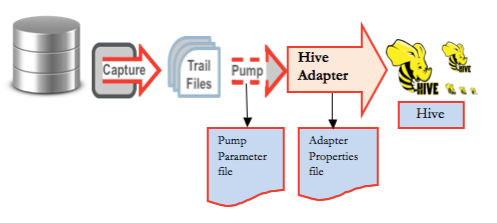
Which is exactly what Oracle GoldenGate does, and what most people don’t realise is that GoldenGate can also load data into HDFS and Hive, as well as the usual database targets. Hive and HDFS aren’t fully-supported targets yet, you can use the Oracle GoldenGate for Java adapter to act as the handler process and then land the data in HDFS files or Hive tables on your target Hadoop platform. My Oracle Support has two tech nodes, “Integrating OGG Adapter with Hive (Doc ID 1586188.1)” and “Integrating OGG Adapter with HDFS (Doc ID 1586210.1)” that give example implementations of the Java adapters you’d need for these two target types, with the overall end-to-end process for landing Hive data looking like the diagram below (and the HDFS one just swapping out HDFS for Hive at the handler adapter stage)
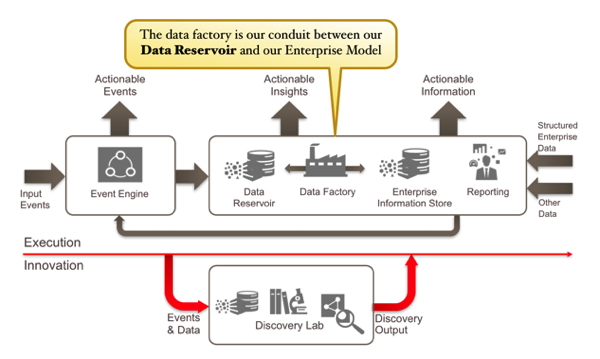
This is also a good example of the sorts of technology we’d use to implement the “data factory” concept within the new Oracle Information Management Reference Architecture, the part of the architecture that moves data between the Hadoop and NoSQL-based Data Reservoir, and the relationally-stored enterprise information store; in this case, trickle-feeding transactional data from the Oracle database into Hadoop, perhaps to archive it at lower-cost than we could do in an Oracle database, or to add transaction activity data to a Hadoop-based application
So I asked my colleague Nelio Guimaraes to set up a GoldenGate capture process on our Cloudera CDH5.1 Hadoop cluster, using GoldenGate 12.1.2.0.0 for our source Oracle 11gR2 database and Oracle GoldenGate for Java, downloadable separately on edelivery.oracle.com under Oracle Fusion Middleware > Oracle GoldenGate Application Adapters 11.2.1.0.0 for JMS and Flat File Media Pack. In our example, we’re going to capture activity on the SCOTT.EMP table in the Oracle database, and then perform the following step to set up replication from it into a replica Hive table:
- Create a table in Hive that corresponds to the table in Oracle database.
- Create a table in the Oracle database and prepare the table for replication.
- Configure the Oracle GoldenGate Capture to extract transactions from the Oracle database and create the trail file.
- Configure the Oracle GoldenGate Pump to read the trail and invoke the custom adapter
- Configure the property file for the Hive handler
- Code, Compile and package the custom Hive handler
- Execute a test.
Setting up the Oracle Database Source Capture
Let’s go into the Oracle database first, check the table definition, and then connect to Hadoop to create a Hive table of the same column definition.
[oracle@centraldb11gr2 ~]$ sqlplus scott/tiger
SQL*Plus: Release 11.2.0.3.0 Production on Thu Sep 11 01:08:49 2014
Copyright (c) 1982, 2011, Oracle. All rights reserved.
Connected to:
Oracle Database 11g Enterprise Edition Release 11.2.0.3.0 - 64bit Production
With the Partitioning, Oracle Label Security, OLAP, Data Mining,
Oracle Database Vault and Real Application Testing options
SQL> describe DEPT
 Name Null? Type
 ----------------------------------------- -------- ----------------------------
 DEPTNO NOT NULL NUMBER(2)
 DNAME VARCHAR2(14)
 LOC VARCHAR2(13)
SQL> exit
...
[oracle@centraldb11gr2 ~]$ ssh oracle@cdh51-node1
Last login: Sun Sep 7 16:11:36 2014 from officeimac.rittmandev.com
[oracle@cdh51-node1 ~]$ hive
...
create external table dept
(
 DEPTNO string,
 DNAME string,
 LOC string
) row format delimited fields terminated by '\;' stored as textfile
location '/user/hive/warehouse/department';
exit
...
Then I install Oracle Golden Gate 12.1.2 on the source Oracle database, just as you’d do for any Golden Gate install, and make sure supplemental logging is enabled for the table I’m looking to capture. Then I go into the ggsci Golden Gate command-line utility, to first register the user it’ll be connecting as, and what table it needs to capture activity for.
[oracle@centraldb11gr2 12.1.2]$ cd /u01/app/oracle/product/ggs/12.1.2/
[oracle@centraldb11gr2 12.1.2]$ ./ggsci
$ggsci> DBLOGIN USERID sys@ctrl11g, PASSWORD password sysdba
$ggsci> ADD TRANDATA SCOTT.DEPT COLS(DEPTNO), NOKEY
GoldenGate uses a number of components to replicate data from source to targets, as shown in the diagram below.
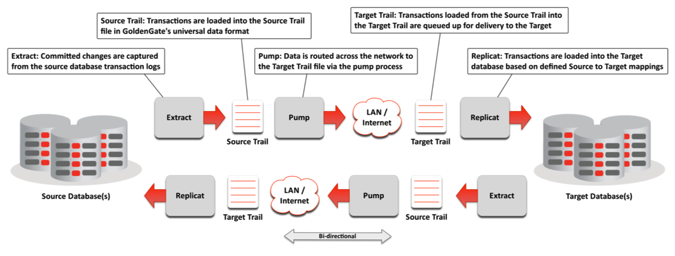 For our purposes, though, there are just three that we need to configure; the Extract component, which captures table activity on the source; the Pump process that moves data (or the “trail”) from source database to the Hadoop cluster; and the Replicat component that takes that activity and applies it to the target tables. In our example, the extract and pump processes will be as normal, but we need to create a custom “handler” for the target Hive table that uses the Golden Gate Java API and the Hadoop FS Java API.
The tool we use to set up the extract and capture process is ggsci, the command-line Golden Gate Software Command Interface. I’ll use it first to set up the Manager process that runs on both source and target servers, giving it a port number and connection details into the source Oracle database.
$ggsci> edit params mgr
PORT 7809
USERID sys@ctrl11g, PASSWORD password sysdba
PURGEOLDEXTRACTS /u01/app/oracle/product/ggs/12.1.2/dirdat/*, USECHECKPOINTS
Then I create two configuration files, one for the extract process and one for the pump process, and then use those to start those two processes.
$ggsci> edit params ehive
EXTRACT ehive
USERID sys@ctrl11g, PASSWORD password sysdba
EXTTRAIL /u01/app/oracle/product/ggs/12.1.2/dirdat/et, FORMAT RELEASE 11.2
TABLE SCOTT.DEPT;
$ggsci> edit params phive
EXTRACT phive
RMTHOST cdh51-node1.rittmandev.com, MGRPORT 7809
RMTTRAIL /u01/app/oracle/product/ggs/11.2.1/dirdat/rt, FORMAT RELEASE 11.2
PASSTHRU
TABLE SCOTT.DEPT;
$ggsci> ADD EXTRACT ehive, TRANLOG, BEGIN NOW
$ggsci> ADD EXTTRAIL /u01/app/oracle/product/ggs/12.1.2/dirdat/et, EXTRACT ehive
$ggsci> ADD EXTRACT phive, EXTTRAILSOURCE /u01/app/oracle/product/ggs/12.1.2/dirdat/et
$ggsci> ADD RMTTRAIL /u01/app/oracle/product/ggs/11.2.1/dirdat/rt, EXTRACT phive
As the Java event handler on the target Hadoop platform won’t be able to ordinarily get table metadata for the source Oracle database, we’ll use the defgen utility on the source platform to create the parameter file that the replicat process will need.
$ggsci> edit params dept
defsfile ./dirsql/DEPT.sql
USERID ggsrc@ctrl11g, PASSWORD ggsrc
TABLE SCOTT.DEPT;
./defgen paramfile ./dirprm/dept.prm NOEXTATTR
Note that NOEXTATTR means no extra attributes; because the version on target is a generic and minimal version, the definition file with extra attributes won’t be interpreted. Then, this DEPT.sql file will need to be copied across to the target Hadoop platform where you’ve installed Oracle GoldenGate for Java, to the /dirsql folder within the GoldenGate install.
[oracle@centraldb11gr2 12.1.2]$ ssh oracle@cdh51-node1
oracle@cdh51-node1's password:
Last login: Wed Sep 10 17:05:49 2014 from centraldb11gr2.rittmandev.com
[oracle@cdh51-node1 ~]$ cd /u01/app/oracle/product/ggs/11.2.1/
[oracle@cdh51-node1 11.2.1]
$ pwd/u01/app/oracle/product/ggs/11.2.1
[oracle@cdh51-node1 11.2.1]$ ls dirsql/
DEPT.sql
Then, going back to the source Oracle database platform, we’ll start the Golden Gate Monitor process, and then the extract and pump processes.
[oracle@cdh51-node1 11.2.1]$ ssh oracle@centraldb11gr2
oracle@centraldb11gr2's password:
Last login: Thu Sep 11 01:08:18 2014 from bdanode1.rittmandev.com
GGSCI (centraldb11gr2.rittmandev.com) 7> start mgr
Manager started.
GGSCI (centraldb11gr2.rittmandev.com) 8> start ehive
Sending START request to MANAGER ...
EXTRACT EHIVE starting
GGSCI (centraldb11gr2.rittmandev.com) 9> start phive
Sending START request to MANAGER ...
EXTRACT PHIVE starting
Setting up the Hadoop / Hive Replicat Process
Setting up the Hadoop side involves a couple of similar steps to the source capture side; first we configure the parameters for the Manager process, then configure the extract process that will pull table activity off of the trail file, sent over by the pump process on the source Oracle database.
[oracle@centraldb11gr2 12.1.2]$ ssh oracle@cdh51-node1
oracle@cdh51-node1's password:
Last login: Wed Sep 10 21:09:38 2014 from centraldb11gr2.rittmandev.com
[oracle@cdh51-node1 ~]$ cd /u01/app/oracle/product/ggs/11.2.1/
[oracle@cdh51-node1 11.2.1]$ ./ggsci
$ggsci> edit params mgr
PORT 7809
PURGEOLDEXTRACTS /u01/app/oracle/product/ggs/11.2.1/dirdat/*, usecheckpoints, minkeepdays 3
$ggsci> add extract tphive, exttrailsource /u01/app/oracle/product/ggs/11.2.1/dirdat/rt
$ggsci> edit params tphive
EXTRACT tphive
SOURCEDEFS ./dirsql/DEPT.sql
CUserExit ./libggjava_ue.so CUSEREXIT PassThru IncludeUpdateBefores
GETUPDATEBEFORES
TABLE SCOTT.DEPT;
Now it’s time to create the Java hander that will write the trail data to the HDFS files and Hive table. The My Oracle Support Doc.ID 1586188.1 I mentioned at the start of the article has a sample Java program called SampleHandlerHive.java that writes incoming transactions into an HDFS file within the Hive directory, and also writes it to a file on the local filesystem. To get this working on our Hadoop system, we created a new java source code file from the content in SampleHandlerHive.java, updated the path from hadoopConf.addResource to point the the correct location of core-site.xml, hdfs-site.xml and mapred-site.xml, and then compiled it as follows:
export CLASSPATH=/u01/app/oracle/product/ggs/11.2.1/ggjava/ggjava.jar:/opt/cloudera/parcels/CDH-5.1.0-1.cdh5.1.0.p0.53/lib/hadoop/client/*
javac -d . SampleHandlerHive.java
Successfully executing the above command created the SampleHiveHandler.class under /u01/app/oracle/product/ggs/11.2.1//dirprm/com/mycompany/bigdata. To create the JAR file that the GoldenGate for Java adapter will need, I then need to change directory to the /dirprm directory under the Golden Gate install, and then run the following commands:
jar cvf myhivehandler.jar com
chmod 755 myhivehandler.jar
I also need to create a properties file for this JAR to use, in the same /dirprm directory. This properties file amongst other things tells the Golden Gate for Java adapter where in HDFS to write the data to (the location where the Hive table keeps its data files), and also references any other JAR files from the Hadoop distribution that it’ll need to get access to.
[oracle@cdh51-node1 dirprm]$ cat tphive.properties
#Adapter Logging parameters.
gg.log=log4j
gg.log.level=info
#Adapter Check pointing  parameters
goldengate.userexit.chkptprefix=HIVECHKP_
goldengate.userexit.nochkpt=true
# Java User Exit Property
goldengate.userexit.writers=jvm
jvm.bootoptions=-Xms64m -Xmx512M -Djava.class.path=/u01/app/oracle/product/ggs/11.2.1/ggjava/ggjava.jar:/u01/app/oracle/product/ggs/11.2.1/dirprm:/u01/app/oracle/product/ggs/11.2.1/dirprm/myhivehandler.jar:/opt/cloudera/parcels/CDH-5.1.0-1.cdh5.1.0.p0.53/lib/hadoop/client/hadoop-common-2.3.0-cdh5.1.0.jar:/opt/cloudera/parcels/CDH-5.1.0-1.cdh5.1.0.p0.53/lib/hadoop/lib/commons-configuration-1.6.jar:/opt/cloudera/parcels/CDH-5.1.0-1.cdh5.1.0.p0.53/lib/hadoop/lib/commons-logging-1.1.3.jar:/opt/cloudera/parcels/CDH-5.1.0-1.cdh5.1.0.p0.53/lib/hadoop/lib/commons-lang-2.6.jar:/opt/cloudera/parcels/CDH-5.1.0-1.cdh5.1.0.p0.53/etc/hadoop:/opt/cloudera/parcels/CDH-5.1.0-1.cdh5.1.0.p0.53/etc/hadoop/conf.dist:/opt/cloudera/parcels/CDH-5.1.0-1.cdh5.1.0.p0.53/lib/hadoop/lib/guava-11.0.2.jar:/opt/cloudera/parcels/CDH-5.1.0-1.cdh5.1.0.p0.53/lib/hadoop/hadoop-auth-2.3.0-cdh5.1.0.jar:/opt/cloudera/parcels/CDH-5.1.0-1.cdh5.1.0.p0.53/lib/hadoop/client/hadoop-hdfs-2.3.0-cdh5.1.0.jar:/opt/cloudera/parcels/CDH-5.1.0-1.cdh5.1.0.p0.53/lib/hadoop/client/commons-cli-1.2.jar:/opt/cloudera/parcels/CDH-5.1.0-1.cdh5.1.0.p0.53/lib/hadoop/client/protobuf-java-2.5.0.jar
#Properties for reporting statistics
# Minimum number of {records, seconds} before generating a report
jvm.stats.time=3600
jvm.stats.numrecs=5000
jvm.stats.display=TRUE
jvm.stats.full=TRUE
#Hive Handler.
gg.handlerlist=hivehandler
gg.handler.hivehandler.type=com.mycompany.bigdata.SampleHandlerHive
gg.handler.hivehandler.HDFSFileName=/user/hive/warehouse/department/dep_data
gg.handler.hivehandler.RegularFileName=cinfo_hive.txt
gg.handler.hivehandler.RecordDelimiter=;
gg.handler.hivehandler.mode=tx
Now, the final step on the Hadoop side is to start its Golden Gate Manager process, and then start the Replicat and apply process.
GGSCI (cdh51-node1.rittmandev.com) 5> start mgr
Manager started.
GGSCI (cdh51-node1.rittmandev.com) 6> start tphive
Sending START request to MANAGER ...
EXTRACT TPHIVE starting
Testing it All Out
So now I’ve got the extract and pump processes running on the Oracle Database side, and the apply process running on the Hadoop side, let’s do a quick test and see if it’s working. I’ll start by looking at what data is in each table at the beginning.
SQL> select * from dept;
    DEPTNO DNAME  LOC
 ---------- -------------- -------------
10 ACCOUNTING  NEW YORK
20 RESEARCH  DALLAS
30 SALES  CHICAGO
40 OPERATIONS  BOSTON
50 TESTE  PORTO
60 NELIO  STS
70 RAQUEL  AVES
7 rows selected.
Over on the Hadoop side, there’s just one row in the Hive table:
hive> select * from customer;
OK 80MARCIA   ST
Now I’ll go back to Oracle and insert a new row in the DEPT table:
SQL> insert into dept (deptno, dname, loc)
  2  values (75, 'EXEC','BRIGHTON');
1 row created.
SQL> commit;
Commit complete.
And, going back over to Hadoop, I can see Golden Gate has added that record to the Hive table, by the Golden Gate for Java adapter writing the transaction to the underlying HDFS file.
hive> select * from customer;
OK 80MARCIA   ST
75 EXEC       BRIGHTON
So there you have it; Golden Gate replicating Oracle RBDMS transactions into HDFS and Hive, to complement Apache Flume’s ability to replicate log and event data into Hadoop. Moreover, as Michael Rainey explained in this three part blog series, Golden Gate is closely integrated into the new 12c release of Oracle Data Integrator, making it even easier to manage Golden Gate replication processes into your overall data loading project, and giving Hadoop developers and Golden Gate users access to the full set of load orchestration and data quality features in that product rather than having to rely on home-grown scripting, or Oozie.
GoldenGate and Oracle Data Integrator – A Perfect Match in 12c… Part 4: Start Journalizing!
In this post, the finale of the four-part series “GoldenGate and Oracle Data Integrator - A Perfect Match in 12c”, I’ll walk through the setup of the ODI Models and start journalizing in “online” mode. This will utilize our customized JKM to build the GoldenGate parameter files based on the ODI Metadata and deploy them to both the source and target GoldenGate installation locations. Before I get into all of the details, let’s recap the first 3 posts and see how we arrived at this point.
Part one of the series, Getting Started, led us through a quick review of the Oracle Reference Architecture for Information Management and the tasks we’re trying to accomplish; loading both the Raw Data Reservoir (RDR) and Foundation schemas simultaneously, using Oracle GoldenGate 12c replication, and set it all up via Oracle Data Integrator 12c. We also reviewed the setup of the GoldenGate JAgent process, necessary for communication between ODI and GoldenGate when using the “online” version of the Journalizing Knowledge Module.
In part two, we reviewed the Journalizing Knowledge Module, “JKM Oracle to Oracle Consistent (OGG Online)”, its new features, and how much it has been improved in ODI 12c. Full integration with Oracle GoldenGate, through the use of the new ODI Tool “OdiOggCommand”, allows for the setup and configuration of GoldenGate process groups, trail file directories, and table-level supplemental logging, all from the ODI JKM.
Most recently, part 3, titled Setup Journalizing, walked us through the customizations of the “JKM Oracle to Oracle Consistent (OGG Online)” that will allow us to create the source-to-foundation replication alongside the standard source-to-RDR setup. We added a set of options, the first to control whether or not we replicat to foundation and the second to capture the ODI Logical Schema corresponding to the foundation schema. Then we added the task that will create the source-to-foundation table mapping inside the GoldenGate replicat parameter file and set the options appropriately. I’ve been using the ODI 12c Getting Started VM, with the 12.1.2 version of ODI, for my demo setup. If you haven’t done so already, you can download the latest version of the VM, with ODI 12.1.3, from the Oracle Technical Network. I’d say that’s enough recap, now on to the final steps for GoldenGate and ODI 12c integration and let’s start journalizing!
Setup ODI Models
Create Models
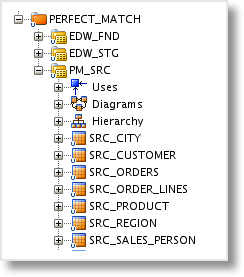
We first need to create the ODI Models and Datastores for the Source, Staging (Raw Data Reservoir) and Foundation tables. I will typically reverse engineer the source tables into a Model first, then copy them to the Staging and Foundation Models. This approach will ensure the column names and data types remain consistent with the source. I then execute a Groovy script to create the additional data warehouse audit columns in each of the Foundation Datastores.
Configure JKM
Unlike the 11g version of ODI, in 12c the “JKM Oracle to Oracle Consistent (OGG Online)” Knowledge Module will be set on the source Model. Open up the Model, in this example, PM_SRC, and switch to the Journalizing tab.
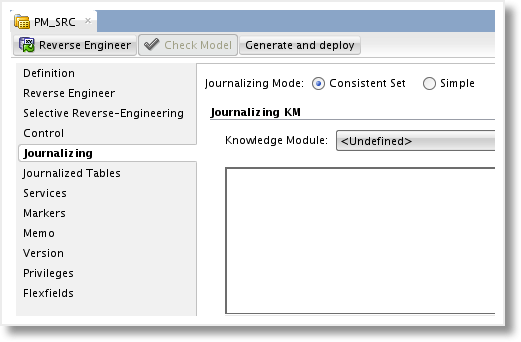
We’ll set the Journalizing Mode to “Consistent Set” and then choose the customized JKM that we have been working with in this example, “JKM Oracle to Oracle Consistent (OGG Online) RM”, from the dropdown list. Now we are presented with the GoldenGate Process Selection parameters and a list of KM Options to configure.
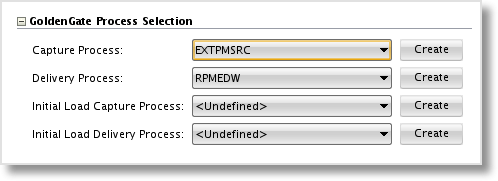
Set the Process Selection parameters for the Capture Process and Delivery Process by selecting the Logical Schemas created in Part 3 - Setup GoldenGate Topology - Schemas. This setting drives the naming of the Extract, Pump, and Replicat parameter files and process groups in GoldenGate. If you plan to use GoldenGate for the initial load, select the processes here as well. I’m not setting mine, as I typically use a batch load tool, such as Oracle Datapump or insert across DBLink to perform the initial load of the target. As you can see in the image below, you can also create the Oracle GoldenGate Logical Schemas from the Model.
Next are the set of Options, including the 2 new Options added in the previous post. We can leave several of the values as the default, as they are specific to particular character sets or implementation on a multi-node Oracle RAC setup.
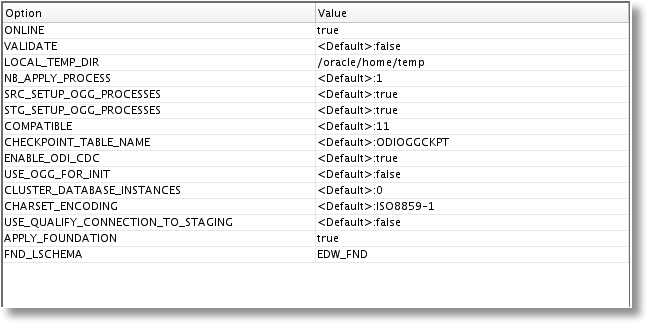
The Options we do want to set:
ONLINE - Set to “true” to enable the automatic GoldenGate configuration when Start Journal is run.
LOCAL_TEMP_DIR - Enter a directory local to the machine on which the Start Journal process will be executed. Be sure the user executing the Start Journal process has privileges to create/modify/remove directories and files.
APPLY_FOUNDATION - Custom Option, set to “true” to enable the addition of the source-to-foundation mapping to the GoldenGate Replicat parameter file.
FND_LSCHEMA - The Logical Schema for the Foundation layer, necessary when APPLY_FOUNDATION is true.
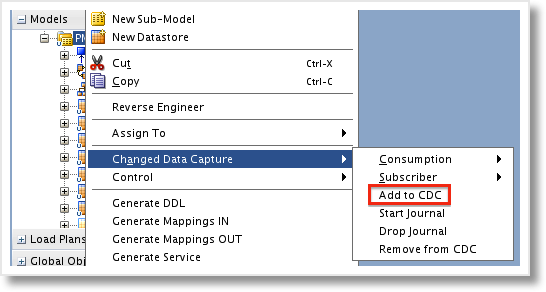
After the Options are set, the Model can be saved and closed. Back in the Designer Navigator, add the Datastores to CDC by either selecting each individual Datastore and adding it or by right-clicking the Model and choosing to add the entire set all at once.
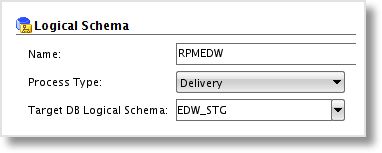
Before we get on with using the JKM, there is one thing I forgot to mention in the previous post. When setting up the Logical Schema for the GoldenGate “Delivery” process, you must also set the target Logical Schema. If you fail to do so, you’ll get an error stating “SnpLSchema does not exist” when attempting any Change Data Capture commands on the source Model.
With the JKM set and the tables added to Change Data Capture, we can now add a Subscriber. Subscribers allow multiple mappings to consume the change data from the J$ tables at different intervals. For example, a table may be consumed by one mapping every hour, and then by an additional mapping each night. Two different Subscribers would be used in this case. In our example, I’ll create a single Subscriber named “PERFECT_MATCH”. Make sure the process runs successfully, then it’s time to start Journalizing.
Start Capturing Changes
With the setup and configuration out of the way, the rest is up to the JKM. We’re now able to right-click the source Model and select Change Data Capture->Start Journal. This executes all of the Start Journal related steps in the JKM, which will create the CDC Framework (J$ tables, JV$ views, etc.), generate and deploy the GoldenGate parameter files (Extract, Pump, and Replicat), and configure and start the GoldenGate process groups. Be sure that the source and target GoldenGate Manager and JAgent processes are running prior to executing the Start Journal process. Also, make sure that the database is in ArchiveLog mode and ready for GoldenGate to capture transactions.
After the Start Journal process is successfully completed, you can browse to the source GoldenGate home directory, run GGSCI, and view the status of the OGG process groups.
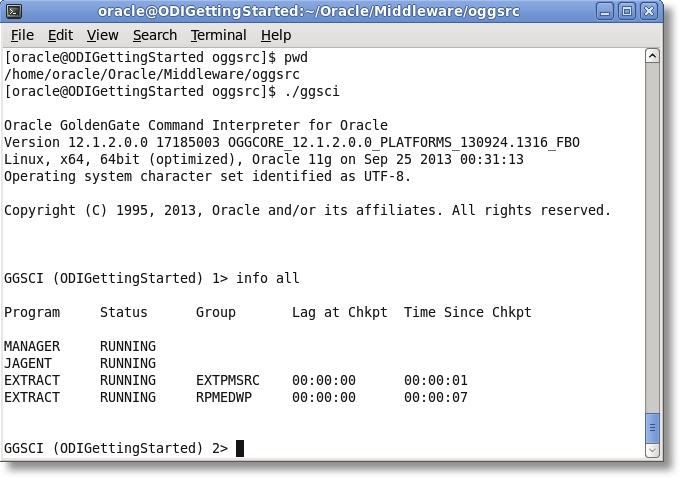
It looks like the Extract and Pump are in place and running. Now let’s check out the Replicat on the target GoldenGate installation.
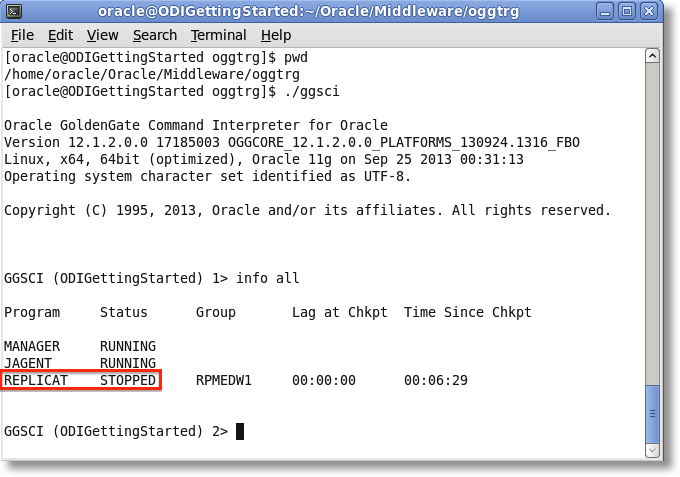
Here we see that the Replicat process is in place, but not actually running. Remember from our JKM editing that we commented out the step that will start the Replicat process. This is to ensure we perform an initial load prior to applying any captured change data to the target.
The last bit of work that must be completed is the initial load. I won’t go into details here, but the way I like to do it is to load the source to the target data based on a captured SCN using Oracle Datapump or DBLink rather than using GoldenGate process groups to perform the load. Note: The ODI 12c Getting Started Guide doesn’t even use the OGG initial load! Then, we can start the replicat in GoldenGate after the captured SCN using the same approach I wrote about in a previous blog on ODI and GoldenGate 11g.
JKM “Online” Mode
Beyond adding the parameter files and process groups, what exactly did the “online” version of the JKM do for us? If you browse to the directory that we set in the JKM Options under LOCAL_TEMP_DIR, you’ll find all of the GoldenGate files generated by the JKM. These files were generated locally, then uploaded to their proper GoldenGate home directory. Without “online” mode, they would had to have been manually copied to GoldenGate.
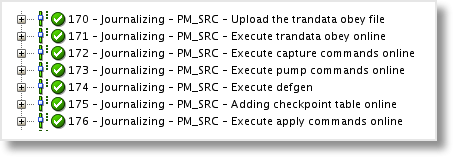
Once uploaded, the obey files (batch files for GoldenGate commands) were executed.
OdiOggCommand "-LSCHEMA=EXTPMSRC" "-OPERATION=EXECUTEOBEY" "-OBEY_FILE=/home/oracle/Oracle/Middleware/oggsrc/EXTPMSRC.oby"
And finally, JKM steps were generated to perform the creation of the process groups in GoldenGate.
OdiOggCommand "-LSCHEMA=EXTPMSRC" "-OPERATION=EXECUTECMD"
add extract EXTPMSRC, tranlog, begin now
add exttrail /home/oracle/Oracle/Middleware/oggsrc/dirdat/oc, extract EXTPMSRC, megabytes 100
stop extract EXTPMSRC
start extract
If you ever need to stop the change data capture process, either to add additional tables or make modifications to the metadata, you can run the Drop Journal process. Not only will the CDC Framework of tables and views be removed, but the “online” mode also reaches into GoldenGate and drops the process groups that were generated by the JKM.
OdiOggCommand "-LSCHEMA=EXTPMSRC" "-OPERATION=EXECUTECMD"
stop extract RPMEDWP
delete extract RPMEDWP
In conclusion, the integration between GoldenGate and Oracle Data Integrator in 12c has been vastly improved over the 11g version. The ability to manage the entire setup process from within ODI is a big step forward, and I can only see these two products being further integrated in future releases. If you have any questions or comments about ODI or GoldenGate, or would like some help with your own implementation, feel free to add a comment below or reach out to me at [email protected].
GoldenGate and Oracle Data Integrator – A Perfect Match in 12c… Part 3: Setup Journalizing
After a short vacation, some exciting news, and a busy few weeks (including KScope14 in Seattle, WA), it’s time to get the “GoldenGate and Oracle Data Integrator - A Perfect Match in 12c” blog series rolling again. Hopefully readers can find some time between World Cup matches to try integrating ODI and GoldenGate on their own!
To recap my previous two posts on this subject, I first started by showing the latest Information Management Reference Architecture at a high-level (described in further detail by Mark Rittman) and worked through the JAgent configuration, necessary for communication between ODI and GoldenGate. In the second post, I walked through the changes made to the GoldenGate JKM in ODI 12c and laid out the necessary edits for loading the Foundation layer at a high-level. Now, it’s time to make the edits to the JKM and set up the ODI metadata.
Before I jump into the JKM customization, let’s go through a brief review of the foundation layer and its purpose. The foundation schema contains tables that are essentially duplicates of the source table structure, but with the addition of the foundation audit columns, described below, that allow for the storage of all transactional history in the tables.
FND_SCN (System Change Number)
FND_COMMIT_DATE (when the change was committed)
FND_DML_TYPE (DML type for the transaction: insert, update, delete)
The GoldenGate replicat parameter file must be setup to map the source transactions into the foundation tables using the INSERTALLRECORDS option. This is the same option that the replicat uses to load the J$ tables, allowing only inserts and no updates or deletes. A few changes to the JKM will allow us to choose whether or not we want to load the Foundation schema tables via GoldenGate.
Edit the Journalizing Knowledge Module
To start, make a copy of the “JKM Oracle to Oracle Consistent (OGG Online)” so we don’t modify the original. Now we’re ready to make our changes.
Add New Options
A couple of new Options will need to be added to enable the additional feature of loading the foundation schema, while still maintaining the original JKM code. Option values are set during the configuration of the JKM on the Model, but can also have a default in the JKM.
APPLY_FOUNDATION
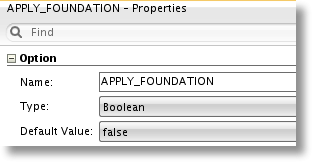
This option, when true, will enable this step during the Start Journal process, allowing it to generate the source-to-foundation mapping statement in the Replicat (apply) parameter file.
FND_LSCHEMA
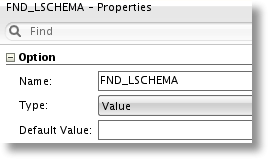
This option will be set with Logical Schema name for the Foundation layer, and will be used to find the physical database schema name when output in the GoldenGate replicat parameter file.
Add a New Task
With the options created, we can now add the additional task to the JKM that will create the source to foundation table mappings in the GoldenGate replicat parameter file. The quickest way to add the task is to duplicate a current task. Open the JKM to the Tasks tab and scroll down to the “Create apply prm (3)” step. Right click the task and select Duplicate. A copy of the task will be created and in the order that we want, just after the step we duplicated.
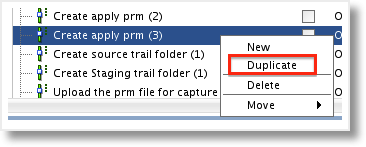
Rename the step to “Create apply prm (4) RM”, adding the additional RM tag so it’s easily identifiable as a custom step. From the properties, open the Edit Expression dialog for the Target Command. The map statement, just below the OdiOutFile line, will need to be modified. First, remove the IF statement code, as the execution of this step will be driven by the APPLY_FOUNDATION option being set to true.
Here’s a look at the final code after editing.
map <%= odiRef.getObjectName("L", odiRef.getJrnInfo("TABLE_NAME"), odiRef.getOggModelInfo("SRC_LSCHEMA"), "D") %>, TARGET <%= odiRef.getSchemaName("" + odiRef.getOption("FND_LSCHEMA") + "","D") %>.<%= odiRef.getJrnInfo("TABLE_NAME") %>, KEYCOLS (<%= odiRef.getColList("", "[COL_NAME]", ", ", "", "PK") %>, FND_SCN)<%if (!odiRef.getOption("NB_APPLY_PROCESS").equals("1")) {%>, FILTER (@RANGE(#ODI_APPLY_NUMBER,<%= nbApplyProcesses %>,<%= odiRef.getColList("", "[COL_NAME]", ", ", "", "PK") %>))<% } %> INSERTALLRECORDS,
COLMAP (
USEDEFAULTS,
FND_COMMIT_DATE = @GETENV('GGHEADER' , 'COMMITTIMESTAMP'),
FND_SCN = @GETENV('TRANSACTION' , 'CSN'),
FND_DML_TYPE = @GETENV('GGHEADER' , 'OPTYPE')
);
The output of this step is going to be a mapping for each source-to-foundation table in the GoldenGate replicat parameter file, similar to this:
map PM_SRC.SRC_CITY, TARGET EDW_FND.SRC_CITY, KEYCOLS (CITY_ID, FND_SCN) INSERTALLRECORDS,
COLMAP (
USEDEFAULTS,
FND_COMMIT_DATE = @GETENV('GGHEADER' , 'COMMITTIMESTAMP'),
FND_SCN = @GETENV('TRANSACTION' , 'CSN'),
FND_DML_TYPE = @GETENV('GGHEADER' , 'OPTYPE')
);
The column mappings (COLMAP clause) are hard-coded into the JKM, with the parameter USEDEFAULTS mapping each column one-to-one. We also hard-code each foundation audit column mapping to the appropriate environment variable from the GoldenGate trail file. Learn more about the GETENV GoldenGate function here.
The bulk of the editing on this step is done to the MAP statement. The out-of-the-box JKM is setup to apply transactional changes to both the J$, or change table, and fully replicated table. Now we need to add the mapping to the foundation table. In order to do so, we first need to identify the foundation schema and table name for the target table using the ODI Substitution API.
map ... TARGET <%= odiRef.getSchemaName("" + odiRef.getOption("FND_LSCHEMA") + "", "D") %> ...
The nested Substitution API call allows us to get the physical database schema name based on the ODI Logical Schema that we will set in the option FND_LSCHEMA, during setup of the JKM on the ODI Model. Then, we concatenate the target table name with a dot (.) in between to get the fully qualified table name (e.g. EDW_FND.SRC_CITY).
... KEYCOLS (<%= odiRef.getColList("", "[COL_NAME]", ", ", "", "PK") %>, FND_SCN) ...
We also added the FND_SCN to the KEYCOLS clause, forcing the uniqueness of each row in the foundation tables. Because we only insert records into this table, the natural key will most likely be duplicated numerous times should a record be updated or deleted on the source.
Set Options
The previously created task, “Create apply prm (4) RM”, should be set to execute only when the APPLY_FOUNDATION option is “true”. On this step, go to the Properties window and choose the Options tab. Deselect all options except APPLY_FOUNDATION, and when Start Journal is run, this step will be skipped unless APPLY_FOUNDATION is true.
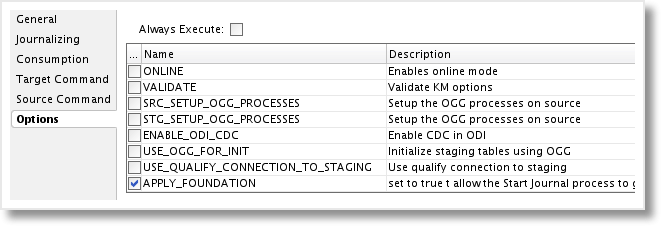
Edit Task
Finally, we need to make a simple change to the “Execute apply commands online” task. First, add the custom step indicator (in my example, RM) to the end of the task name. In the target command expression, comment out the “start replicat …” command by using a double-dash.
--start replicat ...
This prevents GoldenGate from starting the replicat process automatically, as we’ll first need to complete an initial load of the source data to the target before we can begin replication of new transactions.
Additional Setup
The GoldenGate Manager and JAgent are ready to go, as is the customized “JKM Oracle to Oracle Consistent (OGG Online)” Journalizing Knowledge Module. Now we need to setup the Topology for both GoldenGate and the data sources.
Setup GoldenGate Topology - Data Servers
In order to properly use the “online” integration between GoldenGate and Oracle Data Integrator, a connection must be setup for the GoldenGate source and target. These will be created as ODI Data Servers, just as you would create an Oracle database connection. But, rather than provide a JDBC url, we will enter connection information for the JAgent that we configured in the initial post in the series.
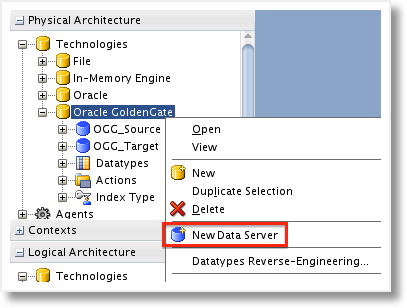
First, open up the Physical Architecture under the Topology navigator and find the Oracle GoldenGate technology. Right-click and create a new Data Server.
Fill out the information regarding the GoldenGate JAgent and Manager. To find the JAgent port, browse to the GG_HOME/cfg directory and open “Config.properties” in a text viewer. Down towards the bottom, the “jagent.rmi.port”, which is used when OEM is enabled, can be found.
####################################################################
## jagent.rmi.port ###
## RMI Port which EM Agent will use to connect to JAgent ###
## RMI Port will only be used if agent.type.enabled=OEM ###
####################################################################
jagent.rmi.port=5572
The rest of the connection information can be recalled from the JAgent setup.
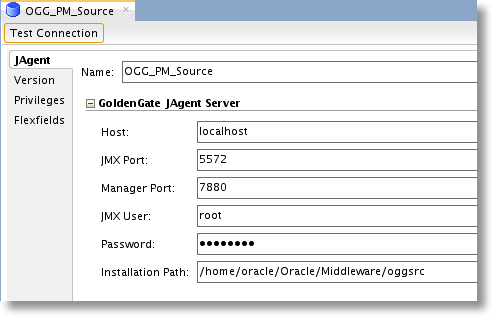
Once completed, test the connection to ensure all of the parameters are correct. Be sure to setup a Data Server for both the source and target, as each will have its own JAgent connection information.
Setup GoldenGate Topology - Schemas
Now that the connection is set, the Physical Schema for both the GoldenGate source and target must be created. These schemas tie directly to the GoldenGate process groups and will be the name of the generated parameter files. Under the source Data Server, create a new Physical Schema. Choose the process type of “Capture”, provide a name (8 characters or less due to GoldenGate restrictions), and enter the trail file paths for the source and target trail files.
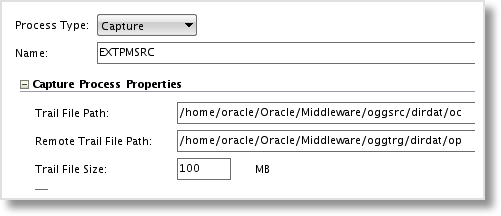
Create the Logical Schema just as you would with any other ODI Technology, and the extract process group schema is set.
For the target, or replicat, process group, perform the same actions on the GoldenGate target Data Server. This time, we just need to specify the target trail file directory, the discard directory (where GoldenGate reporting and discarded records will be stored), and the source definitions directory. The source definitions file is a GoldenGate representation of the source table structure, used when the source and target table structures do not match. The Online JKM will create and place this file in the source definitions directory.
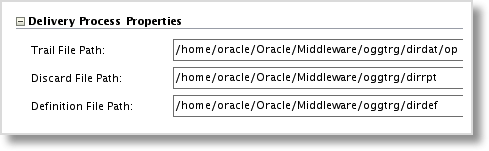
Again, setup the Logical Schema as usual and the connections and process group schemas are ready to go!
The final piece of the puzzle is to setup the source and target data warehouse Data Servers, Physical Schemas, and Logical Schemas. Use the standard best practices for this setup, and then it’s time to create ODI Models and start journalizing. In the next post, Part 4 of the series, we’ll walk through applying the JKM to the source Model and start journalizing using the Online approach to GoldenGate and ODI integration.
Data Integration Tips: GoldenGate on RAC – Action Script for Windows
I want to briefly interrupt my blog series on GoldenGate and ODI - A Perfect Match in 12c… to provide another Data Integration Tip that was found during a recent client engagement. I was tasked with installing GoldenGate 11g into a 2-node RAC, which is a pretty straight-forward process and well documented by the Oracle Data Integration product team. The challenge is that the client’s Oracle RAC environment was installed on Windows Server 2003.
The Scenario
Working through the GoldenGate setup and configuration process for RAC / Clusterware, most of the same approach applies to either Unix/Linux or Windows (maybe a future blog post?). There is also an example action script towards the bottom, but it’s written in shell script..and that just won’t work in Windows! For those unfamiliar with Clusterware, when an application is added as a resource, Clusterware will use the action script to perform specific functions, or actions, against the application. These actions, Check, Start, Stop, etc., will often times run commands through GoldenGate’s GGSCI application, ensuring the Manager process is running, starting the Manager, etc.
We decided to convert the shell script example to batch command script, as this is about as native as it gets in Windows. Everything was going well with the conversion until we reached this function and the highlighted code below.
#call_ggsci is a generic routine that executes a ggsci command
call_ggsci () {
  log "entering call_ggsci"
  ggsci_command=$1
  cd ${GGS_HOME}
  ggsci_output=`${GGS_HOME}/ggsci << EOF
  ${ggsci_command}
  exit
  EOF`
  log "got output of : $ggsci_output"
}
The script will simply change directory to the GoldenGate home, run the GGSCI application, execute the command (passed in as an argument), and then exit GGSCI. This is all wrapped within two EOF “tags”, indicating that the formatting in the script, such as hard returns, etc, should remain when the external command is run. It’s known as a heredoc, and we found that it’s not really possible to do in a batch script.
When attempting similar code in the batch script, without the heredoc, we ran into an issue. GGSCI attempted to run all of the commands on the same line, which failed miserably. We needed another approach to ensure the script would execute properly.
Here’s the Tip…
The goal was to find a way to run a GGSCI command on a single line. The solution: use GGSCI to execute GoldenGate obey files. Rather than attempt to place hard returns in the batch command script, we simply placed all of the necessary commands in an obey file and passed the obey command and script file location it into the function.
call :call_ggsci %GGS_HOME%\diroby\StartMgr.oby
 ...
:call_ggsci
 REM set ggsci_command variable with the passed-in value
 SET ggsci_command=%~1
 call :log "ggsci_command: %ggsci_command%"
 REM log whether or not the GGS_HOME path exists
 if exist %GGS_HOME% (
  call :log "%GGS_HOME% exists"
 ) else (
  call :log "%GGS_HOME% does not exist"
 )
 ...
The obey file could be as complex as you like, but in this case it simply starts the manager process.
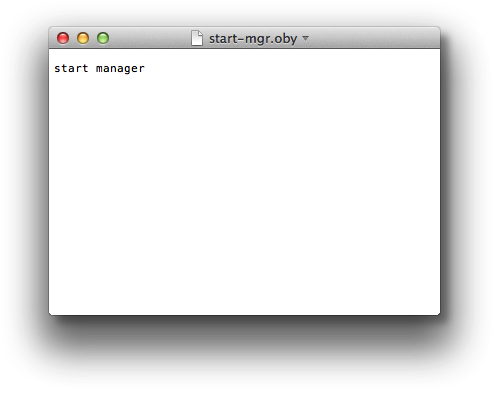
This approach works very well, but we did end up with the additional obey files to maintain. Next time around, I’ll probably use a scripting language such as Groovy or Python, as either should work just fine on Linux or Windows.
Look for more Data Integration Tips on the blog, as Rittman Mead always coming up with innovative solutions to interesting challenges!
 Specialist in liberating data into valuable information for the business.
  The technical engineers who know all about Oracle BI architectures
  The implementation partner for Exadata and Exalytics