
Tag Archives: networking
TimesTen and OBIEE port conflicts on Exalytics
Introduction
Whilst helping a customer set up their Exalytics server the other day I hit an interesting problem. Not interesting as in hey-this-will-cure-cancer, or oooh-big-data-buzzword interesting, or even interesting as in someone-has-had-a-baby, but nonetheless, interesting if you like learning about the internals of the Exalytics stack.
The installation we were doing was multiple non-production environments on bare metal, a design that we developed on our own Rittman Mead Exalytics box early on last year, and one that Oracle describe in their Exalytics white paper which was published recently. Part of a multiple environment install is careful planning of the port allocations. OBIEE binds to many ports per instance, and there is also TimesTen to consider. I’d been through this meticuluously, specifying ports through the staticports.ini file when building the OBIEE domain, as well as in the bim-setup.properties for TimesTen.
So, having given such careful thought to ports, imagine my surprise at seeing this error when we started up one of the OBIEE instances:
[OracleBIServerComponent] [ERROR:1] [] [] [ecid: ] [tid: e1dbd700]  [nQSError: 12002]
Socket communication error at call=bind: (Number=98) Address already in use
which caused a corresponding OPMN error:
ias-component/process-type/process-set:
  coreapplication_obis1/OracleBIServerComponent/coreapplication_obis1/
Error
--> Process (index=1,uid=328348864,pid=17875)
  time out while waiting for a managed process to start
Address already in use? But…all my ports were hand-picked so that they explicitly woulnd’t clash …
Dynamic ports
So it turns out that TimesTen, as well as using the two ports that are explicitly configured (deamon and server, usually 53396 and 53397 respectively), the TimesTen server processs also binds to a port chosen at random by the OS each time for the purpose of internal communication. The OS chooses this port based on the configured dynamic port range, and of that range, which ports are available. This is similar to what the Oracle Database listener does, and as my colleague Pete Scott pointed out it’s been known for port clashes to occur between ODI and the Oracle Database listener. What TimesTen is doing is nothing specific to TimesTen as such, and it is conforming to standard good practice in its use of the OS API calls for port allocations.
To see this in action, use the netstat command, with the flags tlnp:
t: tcp onlyl: LISTEN status onlyn: numeric addresses/ports onlyp: show associated processes
We pipe the output of the netstat command to grep to filter for just the process we’re looking for, giving us:
[oracle@obieesample info]$ netstat -tlnp|grep ttcserver
(Not all processes could be identified, non-owned process info
 will not be shown, you would have to be root to see it all.)
tcp        0      0 127.0.0.1:58476             0.0.0.0:*                   LISTEN      4811/ttcserver
tcp        0      0 0.0.0.0:53397               0.0.0.0:*                   LISTEN      4811/ttcserver
Here we can see on the last line the TimesTen server process (ttcserver) listening on the explicitly configured port 53397 for traffic on any address. We also see it listening on port 58476 for traffic only on the local loopback address 127.0.0.1.
What happens if we restart the TimesTen server and look at the ports again?
[oracle@obieesample info]$ ttdaemonadmin -restartserver
TimesTen Server stopped.
TimesTen Server started.
[oracle@obieesample info]$ netstat -tlnp|grep ttcserver
(Not all processes could be identified, non-owned process info
 will not be shown, you would have to be root to see it all.)
tcp        0      0 127.0.0.1:17073             0.0.0.0:*                   LISTEN      6878/ttcserver
tcp        0      0 0.0.0.0:53397               0.0.0.0:*                   LISTEN      6878/ttcserver
We can see the same listen port 53397 as before, listening for any client connections either locally or remotely, but now the port bound to the local loopback address 127.0.0.1 has changed - 17073.
Russian Roulette
So each time TimesTen starts it requests a port from the OS which will allocate one from the ports available in the dynamic port range. Unfortunately, this may or may not be one of the ones that OBIEE is configured to use. If OBIEE is started first, then the problem does not arise because OBIEE has already taken the ports it needs, leaving the OS to choose from the remaining unused ports for TimesTen to use.
If there are multiple instances of TimesTen and multiple instances of OBIEE then the chances of a port collision increase. What I wanted to know was how to isolate TimesTen from the ports I’d chosen for OBIEE. Constraining the application startup order (so that OBIEE gets all its ports first, and then TimesTen can use whatever is left) is a lame solution since it artificially couples two components that don’t need to be, adding to the complexity and support overhead.
TimesTen itself cannot be configured in its behaviour with these ports - Doc ID 1295539.1 states:
[...] All other TCP/IP port assignments to TimesTen processes are completely random and based on the availability of ports at the time when the process is spawned.
To understand the port range that TimesTen was using (so that I could then configure OBIEE to avoid it) I knocked up this little script. It restarts the TimesTen server, and then appends to a file the random port that it has bound to:
$ cat ./tt_port_scrape.sh
ttdaemonadmin -restartserver
netstat -tlnp|grep ttcserver|grep 127.0.0.1|awk -F ":" '{print $2}'|cut -d " " -f 1 1>>tt_ports.txt
Using my new favourite linux command, watch, I can run the above repeatedly (by default, every two seconds) until I get bored^H^H^H^H^H^H^H^H^H have collected sufficient data points
watch ./tt_port_scrape.sh
Finally, parse the output from the script to look at the port ranges:
echo "Lowest port: " $(sort -n tt_ports.txt | head -n1)
echo "Highest port: " $(sort -n tt_ports.txt | tail -n1)
echo "Number of tests: " $(wc -l tt_ports.txt )
Using this, I observed that TimesTen server would bind to ports ranging from as low as around 9000, up to 65000 or so.
Solution
Raising this issue with the good folks at Oracle Support yielded a nice easy solution. In the kernel settings, there is a configuration option net.ipv4.ip_local_port_range which specifies the local port range available for use by applications. By default this is 9000 to 65500, which matches the range that I observed in my testing above:
[root@rnm-exa-01 ~]# sysctl net.ipv4.ip_local_port_range
net.ipv4.ip_local_port_range = 9000     65500
I changed this range with sysctl -w :
[root@rnm-exa-01 ~]# sysctl -w net.ipv4.ip_local_port_range="11000 65000"
[root@rnm-exa-01 ~]# sysctl net.ipv4.ip_local_port_range
net.ipv4.ip_local_port_range = 11000    65000
and then reran my testing above, which sure enough showed that TimesTen was now keeping its hands to itself and away from my configured OBIEE port ranges:
Lowest port:  11002
Highest port:  64990
If I ran the test for longer, I’m sure I’d hit the literal extremes of the range. One important point here is that the range should not be set too small, because really nasty things will happen if the OS runs out of dynamic ports, and these ports are used in many places in the OS and applications running on it, not just the obvious TimesTen and associated Exalytics applications.
To make the changes permanent, I added the entry to /etc/sysctl.conf:
net.ipv4.ip_local_port_range = 11000 65535
The final point to note here is that if you are installing multiple TimesTen environments on the same Exalytics server then you may actually find one TimesTen instance conflicting with another, if the first instance to start gets allocated a port by the OS which happens to be one of the two static ones that another TimesTen instance on the server is configured to use. Thus, if you are planning on mapping your OBIEE ports outside of the (possible reconfigured) net.ipv4.ip_local_port_range you may be advised to do the same for the static TimesTen ports too.
Lessons learned
- Diagnosing application interactions and dependencies is fun ;-)
watchis a really useful little command on linux- When choosing OBIEE port ranges in multi-environment Exalytics installations, bear in mind that you want to partition off a port range for TimesTen, so keep the port ranges allocated to OBIEE ‘lean’.
OBIEE / FMW and networking on DHCP hosts
FMW can be a bit of a sensitive soul when it comes to networking. Something that always seems to antagonise it is running within a VM (both VMWare Fusion and VirtualBox, since you ask). Being on-site at clients I’ll often find my laptop’s network details change, and because I’m using bridged-networking, the IP of the VM will change. Result: kaput FMW until I restart everything, and carefully-tested demo in the taxi on my way to the site, out of the window.
The reason for the complication stems from the machine (could be VM, but applies equally on a ‘real’ server) using DHCP. OBIEE/FMW has multiple components, which use TCP/IP to communicate. The components will need to address each other, and so that this can work in conjunction with a DHCP-assigned IP address, a lookback adaptor is used. The loopback adaptor has a fixed IP address (such as 127.0.0.1) which never changes, and the only purpose of the loopback adaptor is to route traffic within the local machine. The requirement for and configuration of a loopback adaptor in the installation of OBIEE is well documented. However, on a machine where the DHCP-assigned IP address does change (as it can), a problem can still arise, which is discussed below.
Note that on a carefully configured and static network configuration as would be found on a typical Production server, this is a non-issue, so this blog post is more aimed at those doing sandbox work on a VM, or who are having problems configuring their instance in the first place. Bear in mind that OBIEE is an enterprise server product, it’s not designed for flaky or transient network configs per se.
The problem
In a nutshell, here is the problem:
- Start up OBIEE stack, everything works
- The IP assigned by DHCP of the machine changes
- OBIEE stops working when any calls are attempted between some of the components. For example, from BI Server to the security service (eg when logging in to OBIEE), as it attempts to reach it on the original IP (in this example, 192.168.10.87):
 [OracleBIServerComponent] Could not connect to the authentication web service (taking OBIS offline) 192.168.10.87:
[nQSError: 12002] Socket communication error at call=Connect: (Number=0) Call=NQRpc: An unknown socket communications error has occurred.
[nQSError: 12010] Communication error connecting to remote end point: address = 192.168.10.87; port = 9704.
[nQSError: 46119] Failed to open HTTP connection to server 192.168.10.87 at port 9704.]]
If it were working as intended then the loopback adaptor would be used for all the components’ TCP/IP communication, and the changing DHCP-assigned IP address wouldn’t make any difference to the functioning of the stack.
The symptom
One of the places that the the IP/hostname used for internal communication is stored is in NQSConfig.ini, in the FMW_SECURITY_SERVICE_URL setting. This defines the IP or hostname that BI Server will connect to for the security service, and is what causes the failure shown above (Could not connect to the authentication web service) when the IP changes. Ideally it should be using the hostname (and thus the loopback IP).
FMW_SECURITY_SERVICE_URL = "http://192.168.10.90:9704"; # This Configuration setting is managed by Oracle Business Intelligence Enterprise Manager
To make it more confusing, this option is not controlled by EM (strictly speaking) as the comment implies, but actually by an internal WebLogic process .
Looking at NQSConfig.ini and instanceconfig.xml it looks like the hostname is correctly used elsewhere (for example, JAVAHOST_HOSTNAME_OR_IP_ADDRESSES is correct), so long as the hostnames file has been set up correctly (see below).
The theory
The starting point is RTFM, specifically, Installing Oracle Business Intelligence on a DHCP Host, Non-Network Host, or Multihomed Host. This redirects to Oracle Fusion Middleware System Configuration Requirements, which explains the necessity of having in place a loopback adaptor. On Windows, this needs to be installed; on Linux it’s in place already. On both Linux and Windows, you need to update your hosts file (/etc/hosts or %SYSTEMROOT%\system32\drivers\etc\hosts respectively).
The manual says to put the following in your Windows hosts file, after the standard 127.0.0.1 localhost entry:
IP_address hostname.domainname hostname
Where IP_address is the IP you assigned the loopback adaptor. 127.0.0.1 on Linux or 10.10.10.10 on Windows is common. So we have a hosts file that looks something like this:
127.0.0.1 localhost
10.10.10.10 rm-win02.localdomain rm-win02
Random jiggling & observations
This kind of “I broke things, so now I will jiggle things randomly until they unbreak” is not acceptable.
[…]
You need to understand the difference between “understanding the problem” and “put in random values until it works on one machine”.
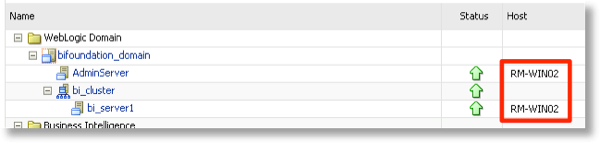
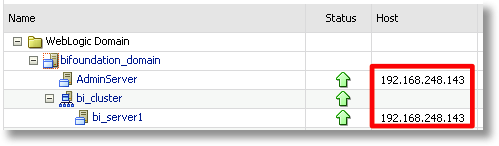
- In EM FMW, the Host field in the default landing page (Farm_bifoundation_domain) can vary depending on networking settings. Sometimes it shows the hostname, and at others it shows the DHCP-assigned IP. However, it isn’t reflected in the value of FMW_SECURITY_SERVICE_URL as one might think - it always uses the IP (DHCP-assigned).
- As suggested on a couple of articles, I tried splitting my hosts file onto one line per host entry, and I also checked on Windows network settings Advanced Settings -> Connections for the order in which connections were used. Neither made a difference to the problem.
- Putting a fully qualified domain name (FQDN) on the hostname in the hosts file made no difference
- Make sure that you have an entry in your hosts file against the loopback adaptor IP matching the value of the hosts attribute of the OracleInstance element in $FMW_HOME/user_projects/domains/bifoundation_domain/config/fmwconfig/biee-domain.xml. You can also see this value in EM under the Scalability tab
- If I ignore the documentation and instead set my hosts file so that the hostname matches the IP that the LAN network adaptor reports (e.g. 192.168.10.87), then when starting the AdminServer, FMW picks up the hostname and shows it in Enterprise Manager. However, if the IP changes, you will need to update the hosts file, otherwise things stop working (because FMW is resolving the hostname to the external IP, not to the loopback). This seems like the wrong step, because it is the purpose of the loopback adaptor hosts entry. It does avoid having to bounce the OBIEE stack when the DHCP-IP does change though.
- Changing the type of VM network configuration (using NAT/host-only/bridged) makes no difference
- The hostname shown in EM (see screenshot above) can be influenced by the order of aliases listed in the hosts file against an IP
- The AdminServer log shows the IPs being detected, note the first line is a warning, code BEA-002611 (Hostname … maps to multiple IP addresses)
<BEA-002611> <Hostname "rm-win02", maps to multiple IP addresses: 10.10.10.10, 192.168.10.86>
<BEA-002613> <Channel "Default[2]" is now listening on 127.0.0.1:7001 for protocols iiop, t3, ldap, snmp, http.>
<BEA-002613> <Channel "Default" is now listening on 192.168.10.86:7001 for protocols iiop, t3, ldap, snmp, http.>
<BEA-002613> <Channel "Default[1]" is now listening on 10.10.10.10:7001 for protocols iiop, t3, ldap, snmp, http.>
The same log entry appears regardless of whether IP or hostname is shown in Enterprise Manager.
Workarounds & Resolution
Here are some “workarounds” that result in FMW using up the hostname rather than DHCP-assigned IP:
- Disable the external network adaptor, i.e. leave only loopback enabled
- Use Host-only networking for the VM, so that the IP associated never changes
- Use NAT networking for my VM, so that the IP associated never changes
- Reboot each time the IP changes, or at least restart the OBIEE stack
- Assign a fixed ListenAddress to the managed server (bi_server1)
Options 1 and 2 are impractical - I like being able to access t’internet from within my VM (e.g. Windows Updates, etc).
Option 3 is a possibility, but I’ve had reasons in the past to not want to use NAT (eg you can’t then access the VM from a browser or SSH on the host).
Option 4 sounds daft, but you’d be surprised how often this is actually the most practical!
Option 5 is the preferred option, and the one documented in part in the My Oracle Support entry OBIEE 11g: How To Bind Components / Ports To A Specific IP Address On Multiple Network Interface (NIC) Machines [ID 1410233.1]. For the purposes of my sanity, I only needed to fix the ListenAddress for bi_server1 and everything else worked fine, but it’s worth being aware of this article in full as it also details binding each of the components within the OBIEE stack to a particular IP or hostname.
Configuring the ListenAddress
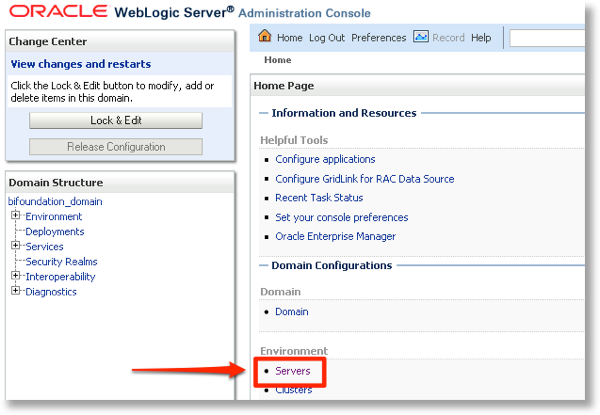
Login to the Administration Server Console (http://yourserver:7001/console normally). Click on the Servers link
Assuming you have an Enterprise deployment, click on the managed server (bi_server1). If it’s a Simple install, click on AdminServer
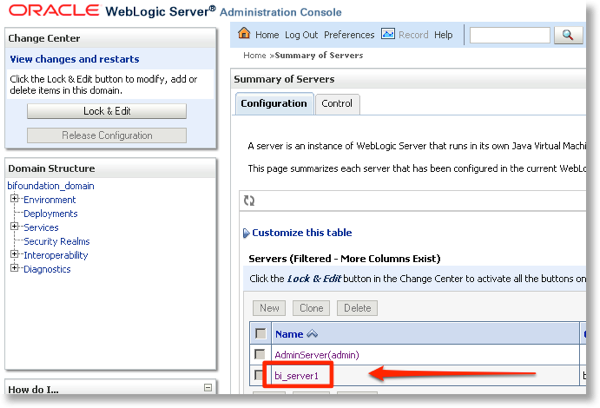
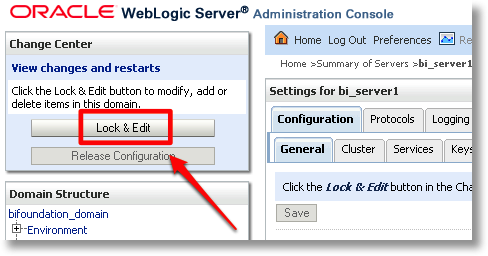
Lock and Edit the configuration, so that you can make changes to it. If you don’t, the options will be greyed out and not editable.
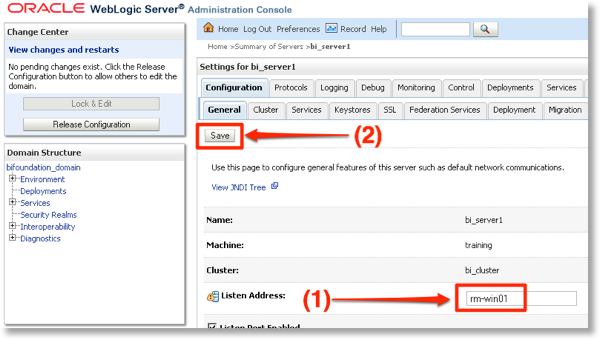
Locate Listen Address and set it to your hostname. Click on Save.
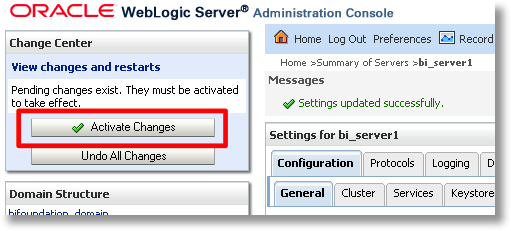
Activate your change by clicking on Activate.

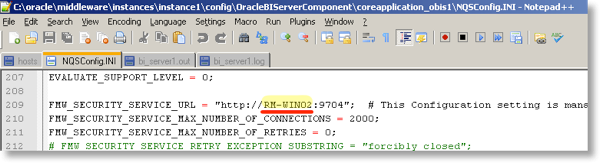
Once activated, you need to restart the server (managed server, or AdminServer, depending on which you’ve changed the configuration of) to pick up the change. After the restart, the NQSConfig.ini file should now have the hostname under FMW_SECURITY_SERVICE_URL:
 and EM shows the hostname instead of IP against the managed server:
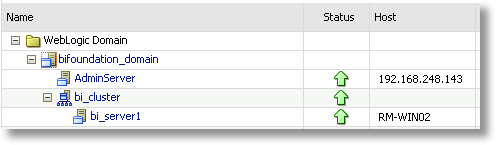
Also note in the server log at startup instead of a message about multiple IPs, there is just the single - loopback - IP:
<BEA-002613> <Channel "Default" is now listening on 10.10.10.10:9704 for protocols iiop, t3, CLUSTER-BROADCAST, ldap, snmp, http.>
The above example sets the Listen Address for the managed server, which seems to be sufficient for causing FMW_SECURITY_SERVICE_URL to use the hostname. It does make sense to set ListenAddress for AdminServer to the hostname too though, following the same process as above. Once done, both AdminServer and the managed server show the hostname in EM:
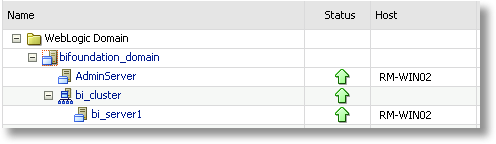
Listen address complications
Too good to be true? Well, there is a small gotcha to be aware of. When you specify a Listen Address for a WebLogic server, it will only listen for (and thus respond) to traffic on the IP of that address. We can see this in the server log when we restart after configuring a Listen Address:
<BEA-002613> <Channel "Default" is now listening on 10.10.10.10:9704 for protocols iiop, t3, CLUSTER-BROADCAST, ldap, snmp, http.>
This is fine if we are working locally on the machine, as we can use the hostname (which resolves to the loopback address, eg 10.10.10.10) for OBIEE and all is well. The problem is accessing OBIEE from a different machine. If we want to access it externally, then we obviously need the machine’s external IP, which is the DHCP-assigned IP. If we haven’t configured a Listen Address, then the Web Logic server listens (and responds) for traffic on all IPs it can find, which includes the DHCP-assigned IP. We can see this in the log too :
<BEA-002611> <Hostname "rm-win02", maps to multiple IP addresses: 10.10.10.10, 192.168.10.86>
<BEA-002613> <Channel "Default[2]" is now listening on 127.0.0.1:7001 for protocols iiop, t3, ldap, snmp, http.>
<BEA-002613> <Channel "Default" is now listening on 192.168.10.86:7001 for protocols iiop, t3, ldap, snmp, http.>
<BEA-002613> <Channel "Default[1]" is now listening on 10.10.10.10:7001 for protocols iiop, t3, ldap, snmp, http.>
So in this case we could access OBIEE on this machine from an external machine using the address http://192.168.10.86:9704/analytics. But if we try to use that address once Listen Address has been configured then it won’t work, because FMW resolves the hostname given as the Listen Address into the IP for the hostname found in the hosts file - which if you’ve followed the documentation should be the loopback address. Therefore a request coming in on a different IP (the DHCP-assigned IP) will just be ignored - you won’t get an error, because to all intents and purposes, there is no server to even respond with an error page on that address.
One way around this is to put the machine’s DHCP-assigned IP in the hosts file for the hostname, but still use Listen Address. This way FMW_SECURITY_SERVICE_URL gets set correctly (to the hostname, from Listen Address) but the Web Logic server listens on the DHCP-assigned IP (which it resolves from the hosts file). If the DHCP IP changes, the host file would need to be updated.
What we’re getting to here is a long way from any kind of realistic “proper” OBIEE installation, and more into the realms of sandpit environments where it’s useful to know how to force things to work together but not so relevant for a Production installation on a fixed-IP server.
Summary
If you are installing OBIEE on a standalone server with a static IP, the above probably does not apply to you. Similarly, if you’re using DHCP but on a machine where the assigned IP isn’t going to change, you probably don’t need the above information.
If you are using a machine with DHCP-assigned IP and this IP is changing - for example, a VM on a host laptop which switches between networks - then you probably want to understand the issue and consider configuring ListenAddress as described.
 Specialist in liberating data into valuable information for the business.
  The technical engineers who know all about Oracle BI architectures
  The implementation partner for Exadata and Exalytics